Page History: XSPFPlayer v3.0 - Specs & Features
Compare Page Revisions
Page Revision: 2009/04/01 21:48
|
XSPF Player 3.0 Overview –
|
The Stand Alone Player (XSPF Player) is an online application that consumes a dynamic web service provided by
UnityWorks! Media to display a flowing video content experience. The application runs off a web service generating a
XML Sharable Playlist Format (XSPF) which the player consumes. The player will play specific videos upon certain criteria compiled by the Unity Works Media systems.
|
Scrub Bar Functionality –
|

The scrub bar will allow the user to navigate through the video tracks at ease. The red rectangle indicates your playback and video scrub functionality. The yellow area represents the elapsed video. The white area indicates the total buffer/download of the video. The object located at the top left corner indicates the status of the video feed. Preset streaming video will not display any download indicator.
|
Default Basic Player Functionality –
|
| Functions |
Description |
| Play |
Plays track |
| Pause |
Pauses current track |
| Rewind |
Rewinds all tracks |
| Mute |
Mutes current video |
|
Open Flash Object Values–
|
| Attributes |
Values |
| Height |
Open Value |
| Width |
Open Value |
|
Contact Form PlugIn / ADF –
|
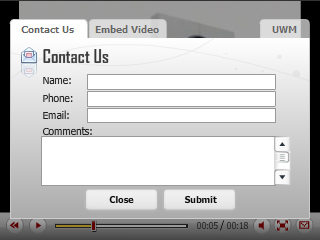
If the application’s configuration has enabled “PluginEnabled” (ADF Enabled), the player will launch a window upon clicking the envelope. The user/client will have the ability of filling out a contact form. If the original configuration contains an ADF plugin, it is possible to turn it off at the flash code object level. The original configuration can only be handled by
UnityWorks! Media.
| Variable |
Values |
Description |
| PluginEnabled |
true, false (Boolean) |
Displays Contact Form |
|
Sharing/Embedding Video –
|
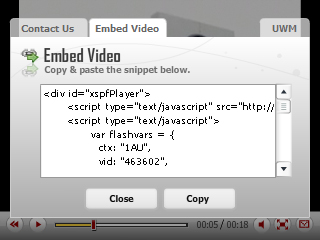
If the application’s configuration has enabled “SharingEnabled”, the player will launch a window where the user/client will have the ability of copying the current video code to an alternate host location. The shared generated code will have the original player settings coming from the
UnityWorks! Media servers. However, if the player attributes have been manually altered though the snippet, the generated code will ignore these settings and revert back to the original ones.
| Variable |
Values |
Description |
| SharingEnabled |
true, false (Boolean) |
Displays sharing tab option |
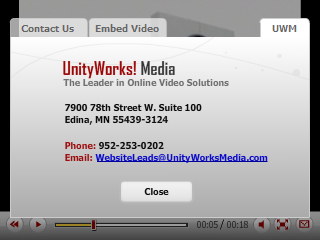
If the application’s configuration has enabled “DisplayUWLogo”, the player will launch a window when the user click on the envelope icon "if" the ADF Plugin is disabled. Otherwise, only a tab will be available. This feature could be turned off within the original configuration or at the flash object code level.
| Variable |
Values |
Description |
| DisplayUWLogo |
true, false (Boolean) |
Displays UWM contact tab option |

The XSPF Player has the capability of displaying Carfax’s services. This option will be displayed on the lower area of the video upon user activation through UWM. It will only be activated if the specific vehicle video has a Carfax report. The user is also able to view a more extensive version of the report by clicking the Carfax tab or logo. The report delivered to the player is in no way altered. Click the ( x ) icon to close.
If the application’s configuration has enabled "CarfaxValue", the player will launch a carfax window when the user click on the "CF" icon if available. Otherwise, the Carfax overlay will automatically launch on the tagged vehicle with the carfax information.
| Variable |
Values |
Description |
| CarfaxValue |
On, Off (String) |
Displays Carfax if available |

The application has a fullscreen capability allowing any video. Contact/ADF forms and any additional features configured into the play will cancel the fullscreen feature if currently activated. This feature is disabled to all products which consume the player, even if configured correctly.
| Variable |
Values |
Description |
| FullScreen |
true, false (Boolean) |
Fullscreen Option |
|
Additional Possible Settings –
|
| Flash Vars |
Values |
Description |
| AutoStart |
true,false (Boolean) |
Video auto play |
| ControlBehavior |
Static,Rollover (String) |
Alters Controls Interaction |
| IsMuted |
true,false (Boolean) |
Mutes video playlist |
| previewFrame |
# (String) |
Previews closest video cue on false AutoStart |
| DisclaimerText |
Actual Features and Options may vary (String) |
Default disclaimer text will be rewritten if activated by the playlist |
| exeFunction |
URL (String) |
URL will launch once video is complete |
| exeTarget |
_blank,_parent,_self (String) |
Targets exeFunction URL |
|
EXE External Interface Commands –
|
The Stand Alone XSPF Player has the option of launching/executing a command once the playtracks have reached completion. The action can basically be anything, from a URL to a JavaScript function. Due to security reasons, the allowScriptAccess parameter is required for “_self” target commands. The integration application code below is required to have the following parameters for functionality. Please see the integration links above for more details.
variable: exeFunction, COMMAND
variable: exeTarget, TARGET
For additional External Interface Integration:
- XSPFPlayer External Interfaces
In all instances of the SWF application a cookie will be stored in the customer’s computer increasing the number of plays by context played if allowed. By doing so, the user will obtain different content/videos, taking full advantage of the dynamic delivery concept. Cookies have an expiration counter of
24 hours. After this predetermined time, the cookie will be reset.
The player will automatically report successful plays, completed videos, errors, bugs, and the occasional user browser OS/browser if applicable. Reports will be sent to
UnityWorks! Media for processing.
The XSPFPlayer is also available as a Flash 9+ Component (AS2) for those who decide to incorporate the player within a 3rd party application. The following information will give you instructions on how to use the component accordingly.
Download the XSPFPlayer v3.0 Component.
UWM_XSPFPplayer_v3_Component.rar (Flash Component Download) - Coming Soon.
- Install XSPFPlayer Component - Launch the packaged .mxp extension.
- Adobe Extension Manager will launch and install the mxp file.
- Restart Flash - Flash will add your new component.
- Open your "component window" (Ctrl + F7).
- Expand the XSPFPlayer component folder.
- Drag the XSPFPlayer component on to your stage.
- The XSPFPlayer will appear on your stage together with the necessary items inside your movie library.
- Single click the XSPFPlayer component currently on the stage.
- Open your "Parameters window". (Ctrl + F3 - Parameters)
- Set your parameters.
- Publish Movie. (Ctrl + Enter)
Component Inspector Parameters - The following parameters are available to alter any pre-determent actions to the player by UWM. This table will give you an idea of the possible actions and set up values the XSPFPlayer component needs.
| Parameter |
Values |
Description |
| CTX ID |
## (String) |
*Required - Team Identifier Value will be provided by UWM |
| VID ID |
## (Num) |
Video Identifier |
| Player Width |
### (Num) |
Video Width |
| Player Height |
### (Num) |
Video Height |
| AutoStart |
true,false (Boolean) |
Video auto play |
| previewFrame |
0 (Num in Seconds) |
Previews closest video cue on false AutoStart |
| IsMuted |
true,false (Boolean) |
Mutes video playlist |
exeFunction |
URL (String) |
URL will launch once video is complete |
exeTarget |
_blank,_parent,_self (String) |
Targets exeFunction URL |